← All guides
Company setup

Getting your
company onto Snubbas

Snubbas coaches your people one day at a time. Before it can do that well you do four things, in order: introduce yourself, tell Snubbas about the company, add your people, and set up your teams with the person who leads each one.

For the company administratorNine stepsStop and resume at any point
01

Get your admin account

Somebody has to be first, and it cannot be self-service.

Snubbas has no sign-up form. Accounts are created for an organisation, so the first one has to be created for you. Ask us to provision your company and name its administrator; you will get an email with a link to activate the account and set a password.

That person gets the company-level controls: the organisation profile, the team list, the company list of people, and the company builds. Everyone else gets their account at step 07 — from you, not from a registration screen.
02

Sign in

Open the app. You land on Welcome back.

  1. Enter your Email and Password, then tap Sign in.
  2. If your email belongs to more than one workspace, a Choose a workspace screen appears first. Pick the one for the company you are setting up — getting this wrong is the single most common way to spend ten minutes configuring the wrong tenant.

Forgotten the password already? Forgot your password? on the same screen mails a reset link, but only after you have typed your email into the field above it.

03

Introduce yourself

On your first sign-in Snubbas opens a conversation to set up you — not the company yet. It knows you run the company, so it will not ask which company you work for or whether you lead a team.

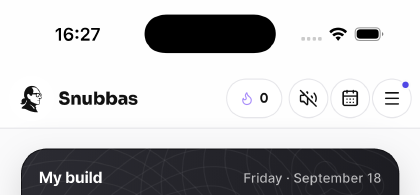
When it is done, Snubbas offers to set up the company straight away. Tap Set up <your company> to go on, or Later — the same setup waits in the menu as Set up your organisation, and the ☰ carries a dot until it is done.

During your own onboarding — company setup is not offered yet.
Afterwards, the ☰ carries a dot until the company is set up.
04

Tell Snubbas about the company

This is the step that decides whether your people get advice about your business or advice in general. The bar across the top shows where you are: Overview, Company, People, Teams.

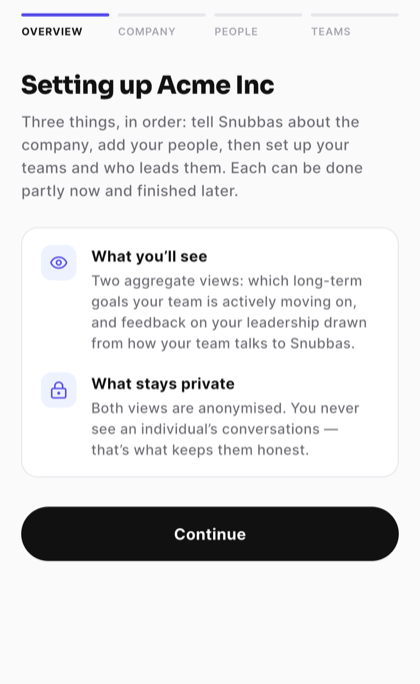
  1. Overview. Headed “Setting up <your company>”, with what you will see and what stays private. Tap Continue.
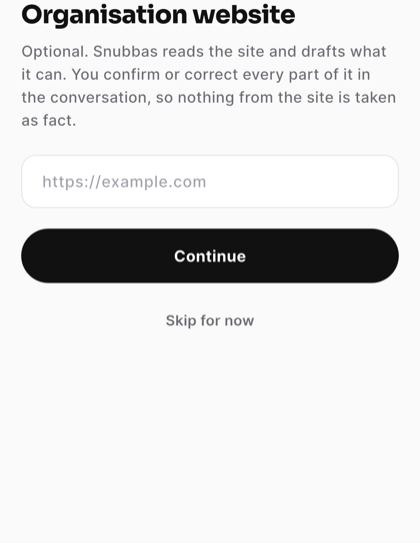
  2. Organisation website — optional. Enter the address and Snubbas reads the site to draft what it can; it will ask you to confirm or correct that draft in the conversation, so nothing from the site is taken as fact. Skip for now is a perfectly good answer.
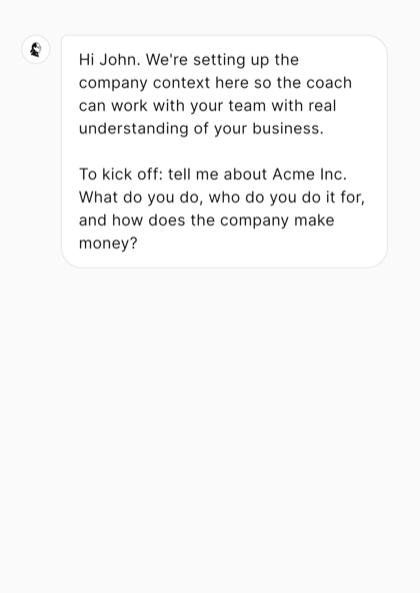
  3. The conversation. Snubbas explains what it is for, then asks one question: what do you do, who do you do it for, and how does the company make money? Answer in your own words, typed or spoken. It asks a follow-up or two only if something is missing — usually who leads which area, by name.
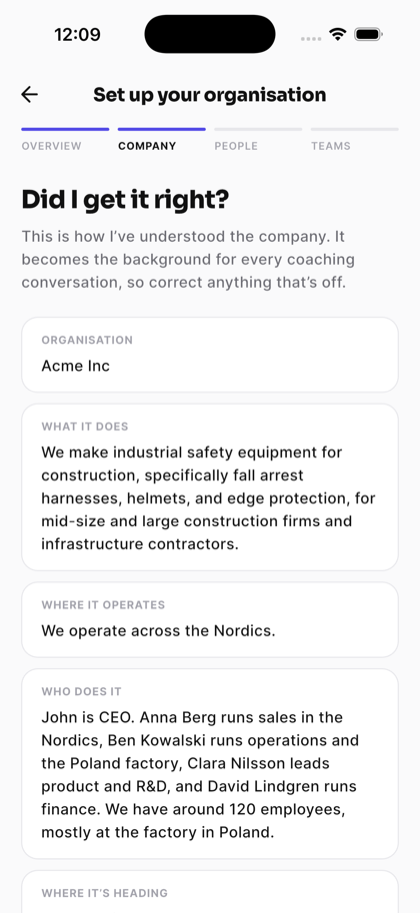
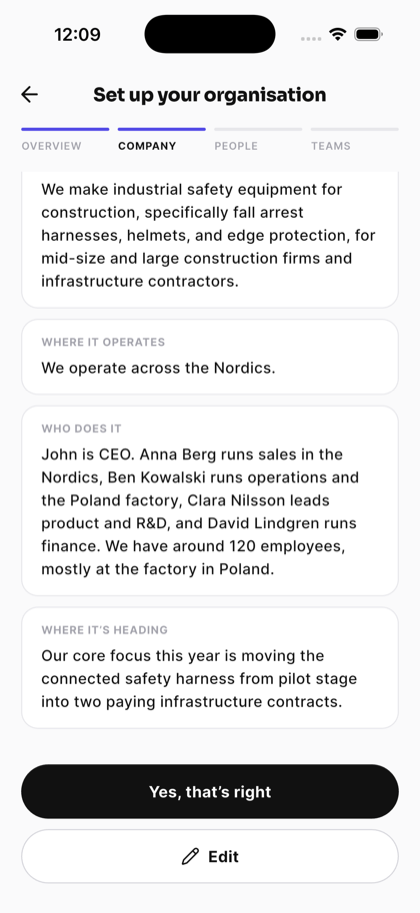
  4. Did I get it right? What Snubbas understood, written the way you would say it — “We make…”, “We operate across…”. Tap Yes, that’s right, or Edit to correct any of it before you go on.
Overview.
Website — optional, and only ever a draft.
One opening question, in your own words.
Read back in the company’s own voice.
Yes, or Edit — before you move on.

This becomes the background for every coaching conversation in the company, and it stays editable, so a first pass that is roughly right beats a perfect one you never finish.

05

Add your people

One list for the whole company. Teams are made by placing people from it, so there is never a separate register per team.

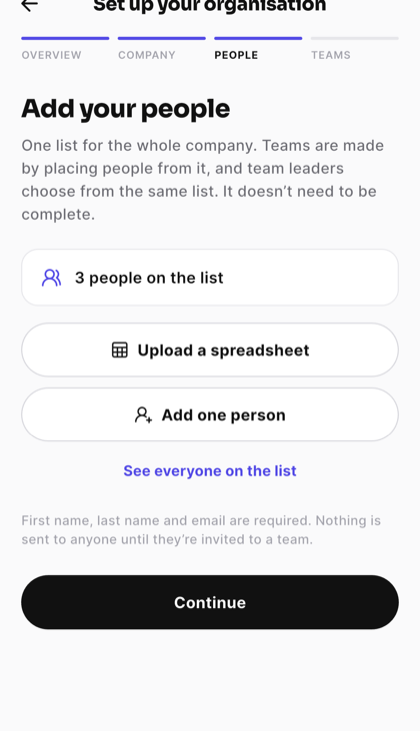
The list does not have to be complete — and if you have no list at all, tap Skip for now and add people later. Two ways in:

  1. Upload a spreadsheet. Choose the file; you see what was found, with unusable rows flagged, before anything is written. Untick what you do not want, then tap Add N.
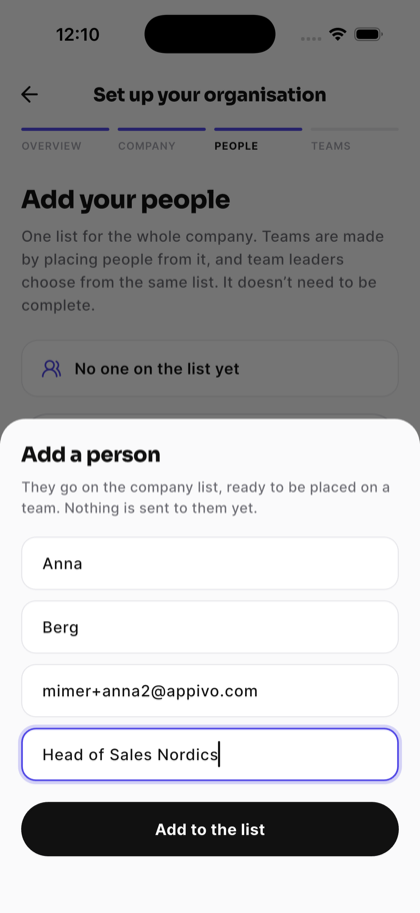
  2. Add one person. First name, last name and email, plus an optional title or role. Tap Add to the list.
What the file needs

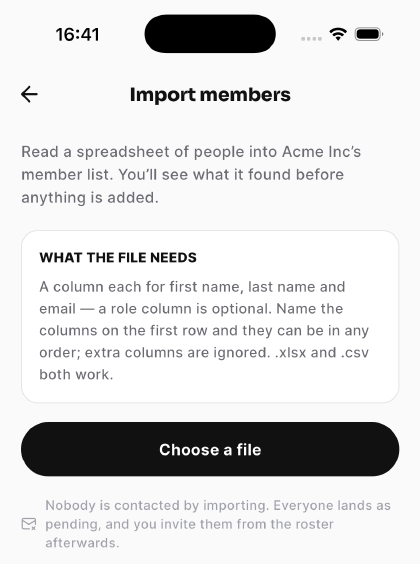
A column each for first name, last name and email. A role column is optional. Name the columns on the first row and they can be in any order; extra columns are ignored. Both .xlsx and .csv work. Rows missing a name or a valid email are flagged and skipped rather than guessed at.

The People step: a spreadsheet, or one at a time.
Adding one person.
What the file needs, and the reminder that nothing is sent.
06

Set up your teams

A name and the person who leads it. Nothing else.

  1. On “How is <your company> organised?”, tap + Add.
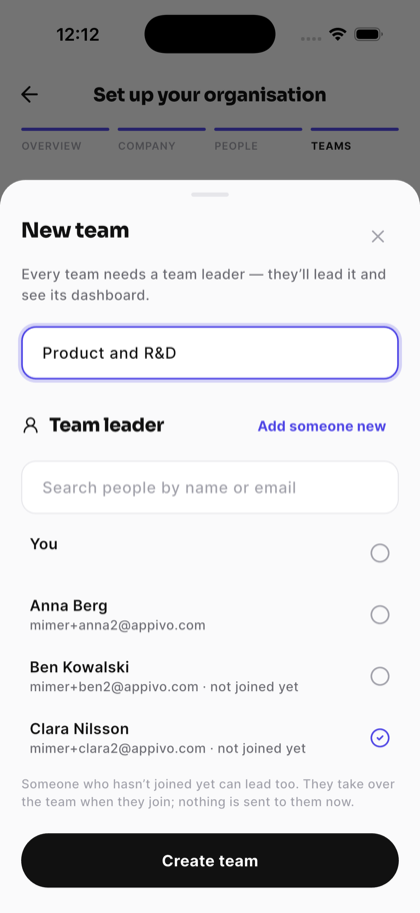
  2. Give the team a name, and pick its Team leader from the company list — you are at the top, if you lead it yourself. Someone who has not joined yet can lead too; nothing is sent to them, and they take the team over when they join. Not on the list? Tap Add someone new.
  3. Tap Create team.
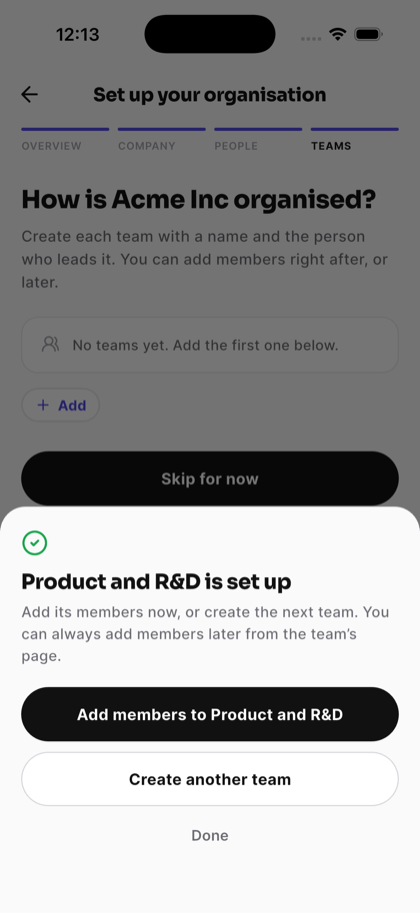
  4. Then choose what is next: Add members to <team> from the company list, Create another team, or Done.

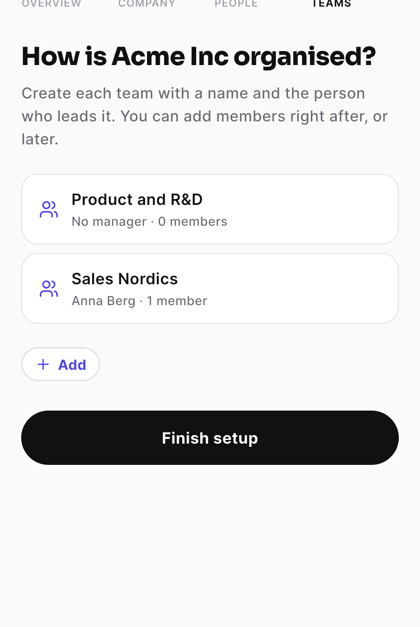
When the teams are in, tap Finish setup. No teams yet? Skip for now works here too.

Name and leader — people who have not joined yet included.
What next: members, another team, or done.
Your teams, then Finish setup.
07

Invite them

This is the step that actually reaches people.

  1. Tap ☰ → Company setup → People (or Company → People at the company).
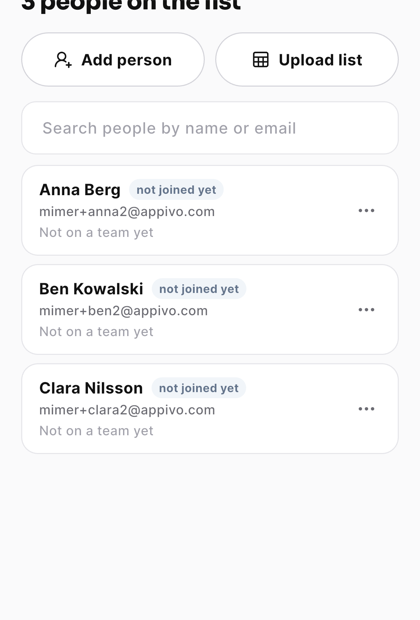
  2. Everyone who has no account yet is tagged not joined yet. Tap ⋯ on their row → Send invitation. That creates their account and emails them a link to activate it.

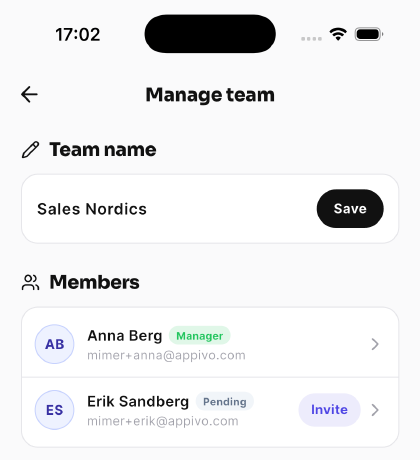
They do not need to be on a team to be invited. You can also invite from a team: open it, tap the gear, and tap Invite beside anyone tagged Pending.

The company list, with who has not joined yet.
Or from a team: the leader tagged Manager, a pending member with Invite.
08

Change things later

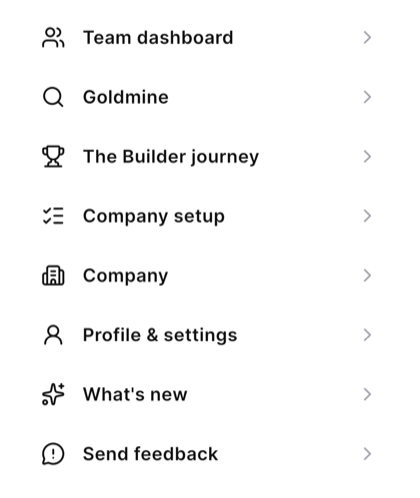
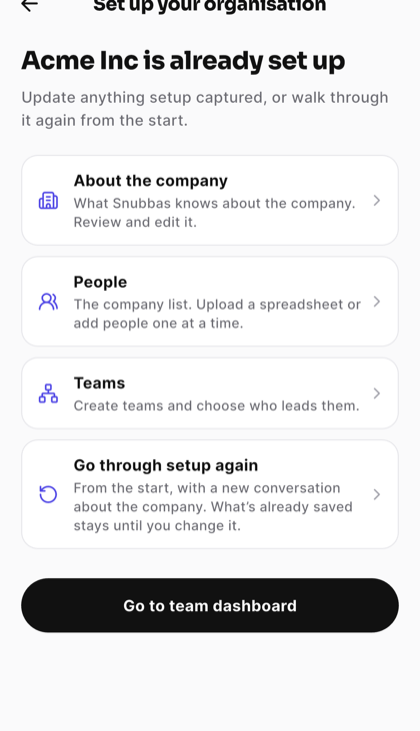
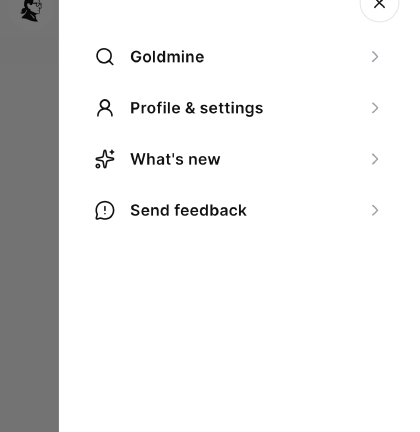
Setup is not a one-off. ☰ → Company setup opens every part of it again.

  • About the company — read what Snubbas knows and edit it.
  • People — add, invite, or Remove from company (⋯ on their row). Removing takes someone off the list and every team, and keeps their own account and history.
  • Teams — create more.
  • Go through setup again — from the start, with a new conversation about the company.

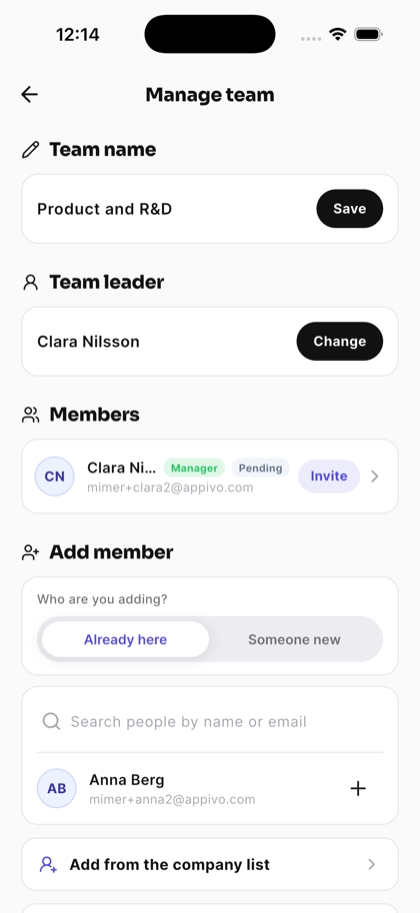
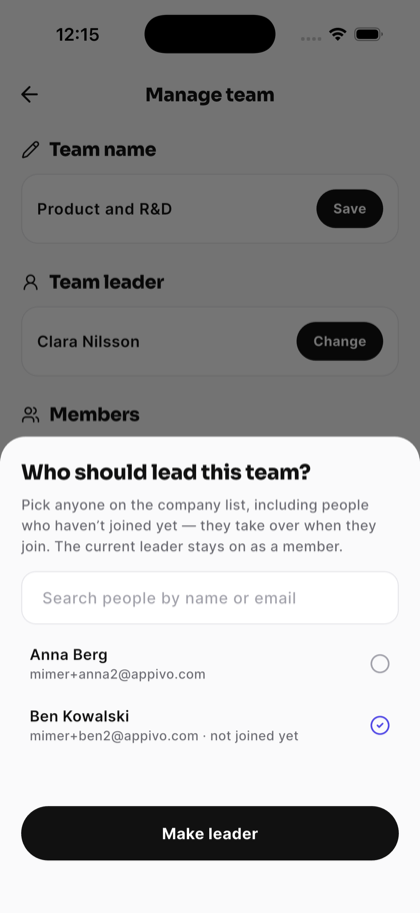
To change who leads a team, open the team, tap the gear, and tap Change under Team leader. Anyone on the company list can take over, including someone who has not joined yet; the previous leader stays on the team.

After setup, the menu keeps “Company setup”.
Every part of setup, to revisit.
A team’s settings: Team leader → Change.
Anyone on the company list can take over.
09

Set the direction

Two levels, and they surface in different places.

Company builds

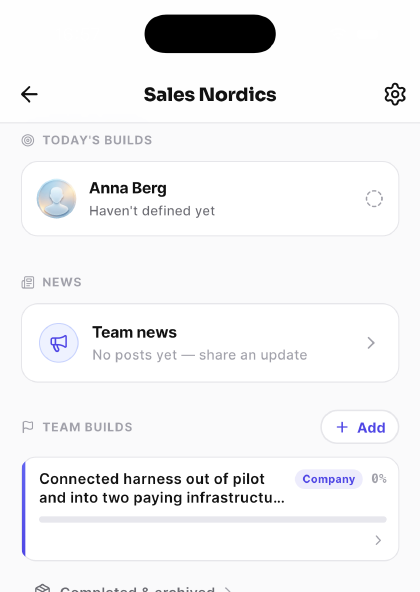
Company page → Company builds → + Add. Every team sees these alongside their own, which is what stops a team optimising for something the company is not doing.

Team builds

Set by each team’s leader, from their own dashboard. This is the layer your leaders own, and it is worth letting them own it.

A company build showing on a team’s own dashboard, tagged “Company”.
Once they are in

What your people actually do

Morning

Define

Snubbas asks what they are building today. One thing. They commit to it.

During the day

Execute

Snubbas steps back. No pings, no nudges, no noise.

Evening

Reflect

Did the build land, or did it turn? Honestly — not to judge, but to learn.

The first time someone opens Snubbas they are shown AI and your data: what gets sent in order to generate a reply, who processes it, and what that company may not do with it. They agree before anything is sent, and can reread it at any time from the app menu. The same ground is covered in our privacy policy.

Be straight about this

What you see,
and what you don’t

Your people will ask. It is much better coming from you on day one than discovered in week three.

You see
  • The build each person commits to, and whether their days land
  • Which long-term goals your teams are actively moving on
  • Feedback on your leadership, drawn from how your team talks to Snubbas

Both company-level views are aggregated and anonymised.

You never see
  • Anyone’s conversations — not as a leader, not as the administrator
  • What someone said while reflecting on a day that went badly
  • A leader’s private read of someone, shown to the person rated

That boundary is what keeps the conversations honest.

Before you roll out

Seven things worth
checking first

Ticks are kept in this browser only.

Common questions

Can people sign themselves up?

No. Snubbas has no registration form. Every account is created by the organisation — which is why inviting people is a step you take, rather than a link you circulate.

Does adding people or importing a spreadsheet email anyone?

No. Adding is transcription, not a decision to contact forty people. Everyone lands on the company list as “not joined yet”, with no account, and nothing is sent until you tap Send invitation for that person.

Do I need a spreadsheet?

No. The list does not need to be complete, and you can skip the step entirely. You can add people one at a time, upload more later, and create teams with whoever is on the list so far.

Can someone who hasn’t joined yet lead a team?

Yes. Pick them as the leader like anyone else. Nothing is sent to them when you do; they take the team over once they have joined.

How do I change who leads a team?

Open the team, tap the gear, and use Change under Team leader. Pick anyone on the company list. The previous leader stays on the team as a member.

How do I remove someone from the company?

Company setup → People (or Company → People at the company), then ⋯ → Remove from company. It takes them off the list and every team; their own account and history are kept. Someone who leads a team has to hand it over first.

Can I add someone who has no email address?

Not in an ordinary company — first name, last name and a valid email are required. The exception is a company configured so that its rosters are people a leader observes rather than Snubbas users in waiting; there a person can sit on the list with no address at all. If that is how you want to run it, talk to us, because it is set on the company rather than by you.

Can I change the company description after setup?

Yes, all of it: Company setup → About the company → Edit, or Edit beside About on the Company page. It is the background for every coaching conversation, so it is worth revisiting when the strategy moves.

Why has the Add button on company builds vanished?

You have three open ones, which is the limit. Complete or close one to free a slot. Completed builds do not occupy a slot.

What happens if I delete a team?

The team is removed and its members stop being on it. Their accounts and their history are kept — deleting a team never deletes the people in it. It cannot be undone.

Something not covered here?

We would rather answer it than have you guess.

Talk to us→